AI replies and the Assistant
Relay texts new leads back fast and keeps the chat going while you are busy. You can read every message, stop it for one customer, or turn it off.
In short: How the Relay Solo AI texts your leads in your name: the automatic first text, AI replies, stopping the AI for one customer, turning it off, making it sound like you, and the Pro Assistant.
Who this is for: Relay Solo customers who want to control the AI that texts their leads.
What the AI does
- It answers your leads. When a customer texts, the AI replies in your name after a short delay. It answers questions and can book an appointment in your calendar.
- It never quotes numbers. Price, payment and trade value questions get steered toward an appointment, and it hands the chat to you when the customer asks for a person, a manager, or a call.
- It steps back when you jump in. Send a text yourself and the AI pauses for that customer.
- It only texts between 8 AM and 9 PM. Messages wait until morning.
- You can see everything. AI messages have a small AI label.
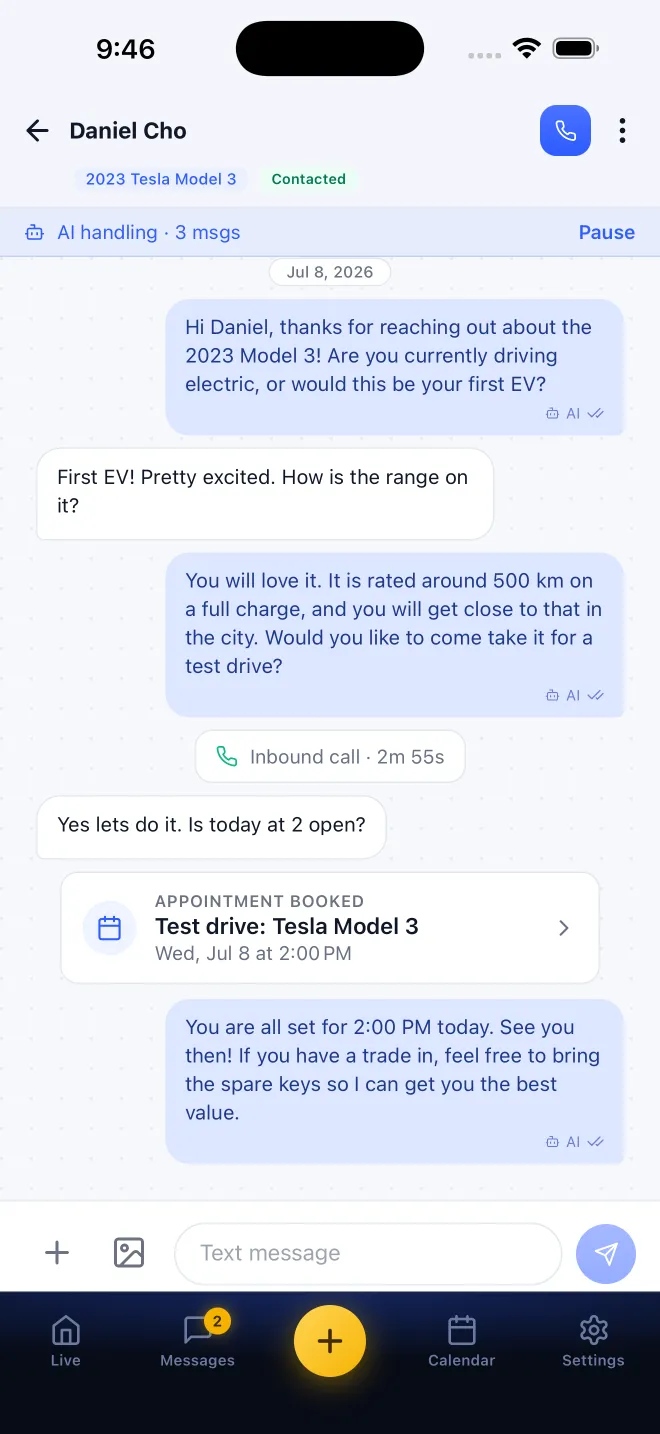
Plan limitOn Starter ($49), the AI sends up to 3 messages per customer every 90 days. Pro ($89) has no limit.
Stop the AI for one customer
- Open the conversation.
- At the top it says AI handling. Tap Pause.
To hand it back, tap Resume. On a computer the buttons are Pause AI and Resume AI.
Turn the AI off for everyone
- In the app, tap Settings.
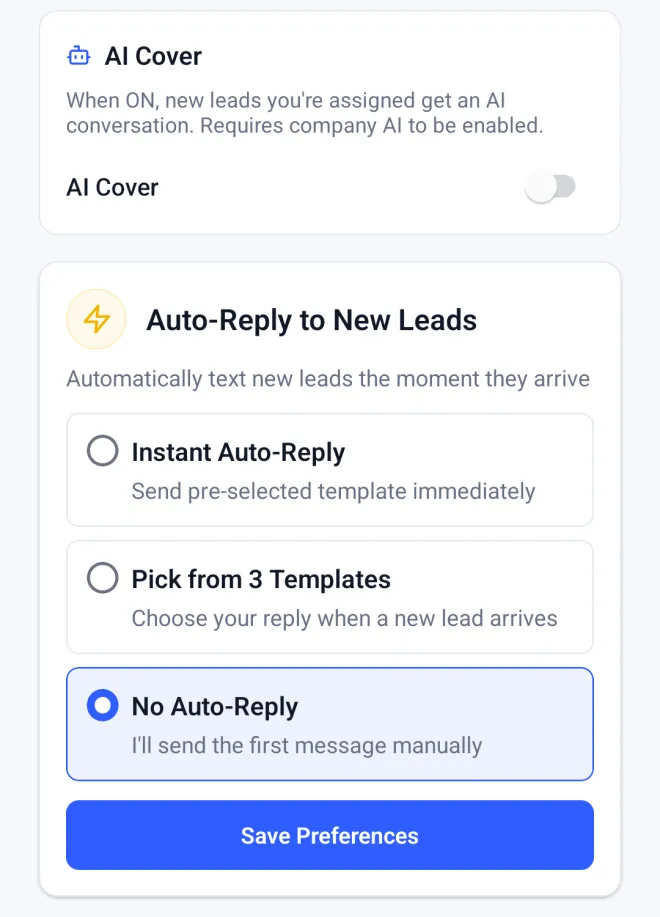
In the app Settings: the AI Cover switch, and Auto-Reply to New Leads. - Turn off AI Cover. Turn it on again any time.
There is also a main switch on a computer: Settings, then AI Agent, then Enable AI Agent (direct link). Click Save AI Settings after.
AI not replying?Both switches must be on: AI Cover in the app and Enable AI Agent on the web. Also check the conversation is not paused.
Stop the automatic first text
When a new lead comes in, Relay can send them a first text right away. To stop that:
- In the app, tap Settings.
- Under Auto-Reply to New Leads, pick No Auto-Reply.
- Tap Save Preferences.
On a computer: Settings, then Auto-Reply (direct link). Pick No Auto-Reply and click Save Auto-Reply Settings.
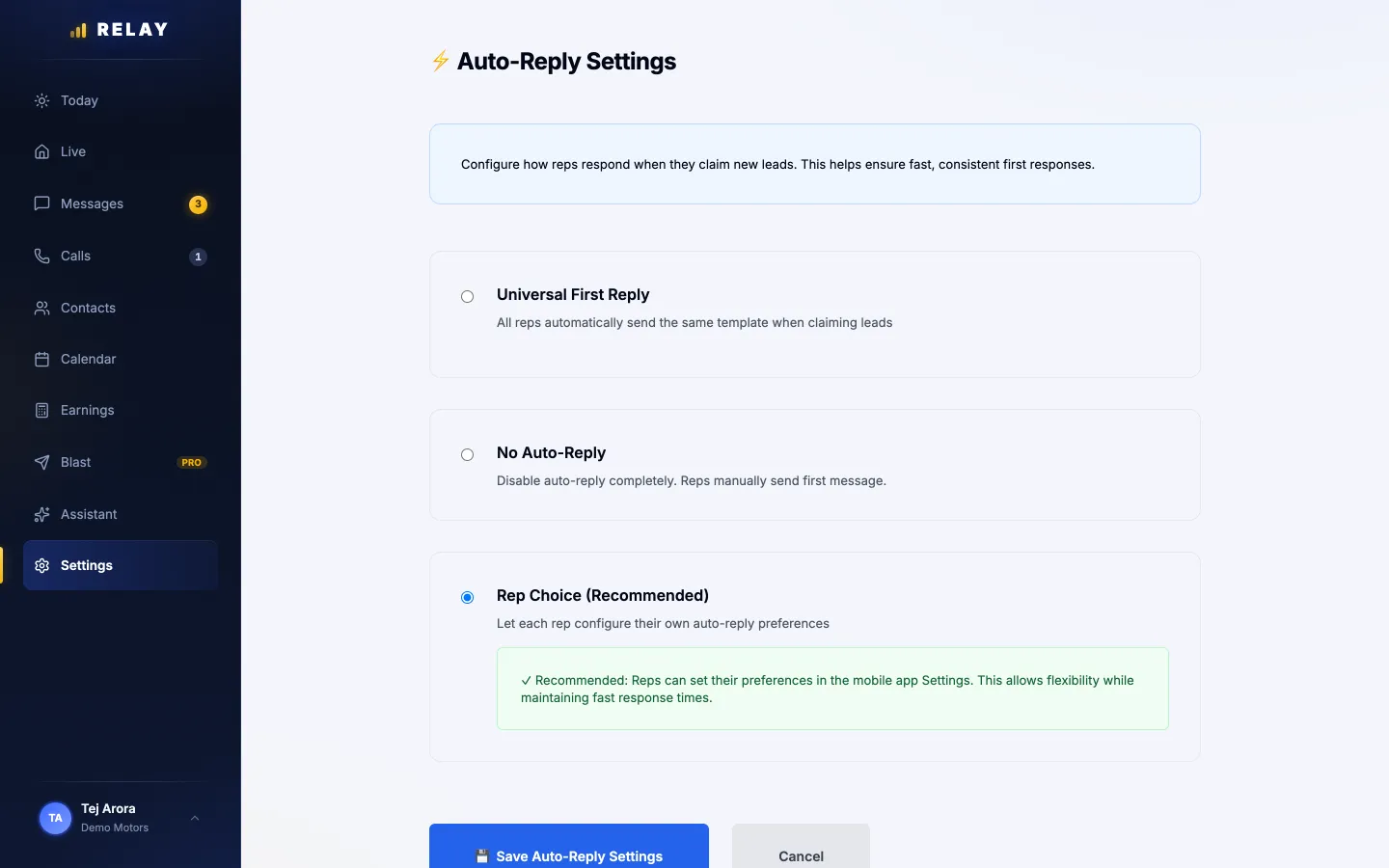
To change the words of the first text, on a computer go to Settings, then Message Templates. Missed calls have their own text. See Calls and texts.
Make the AI sound like you
- On a computer, go to Settings, then AI Agent.
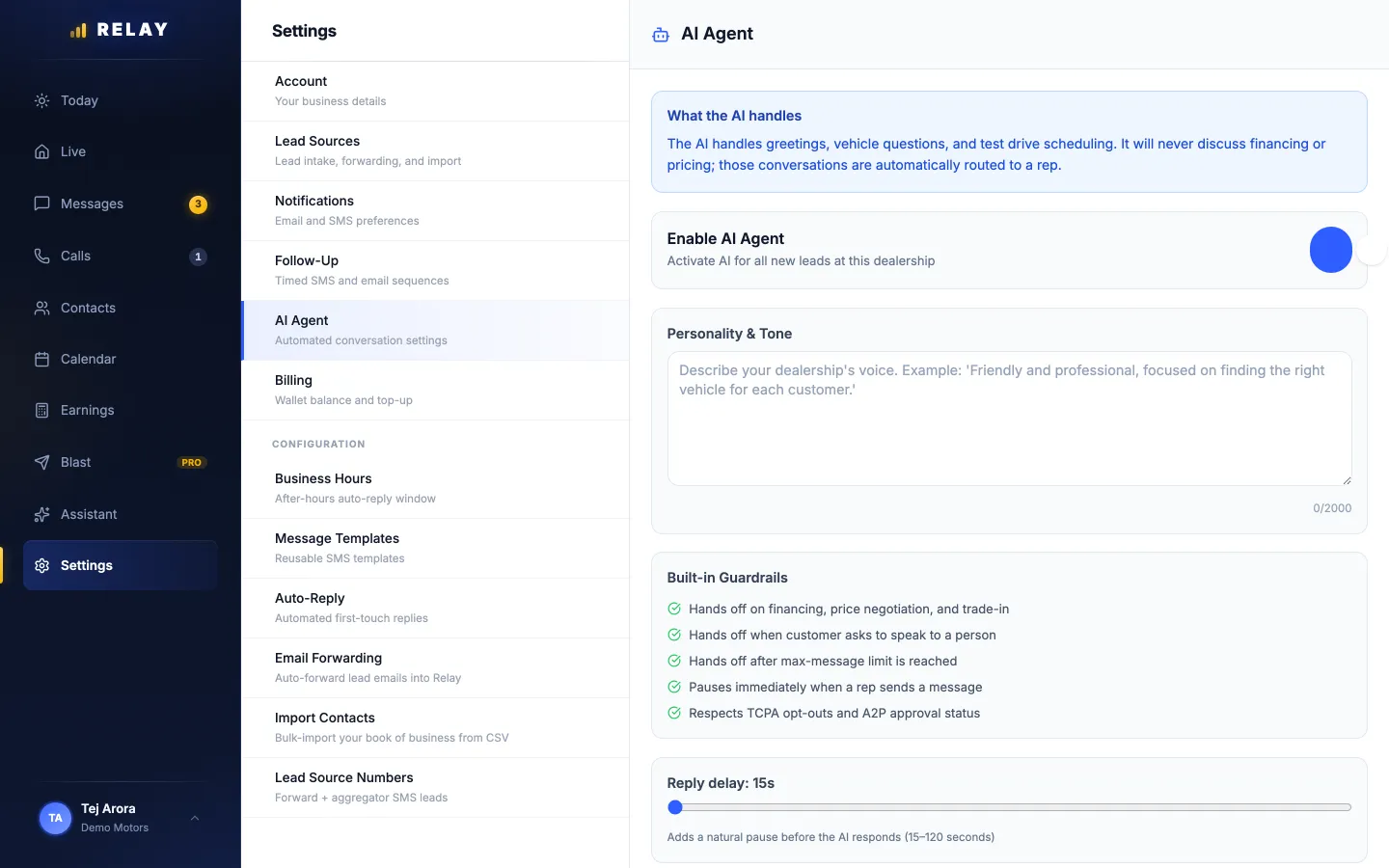
Settings, then AI Agent. - In Personality & Tone, write how you talk. Plain words are fine.
- Change Reply delay, Max messages, or Active Hours if you want.
- Click Save AI Settings.
Use Test the AI on the same page to see what it would say to a pretend lead.
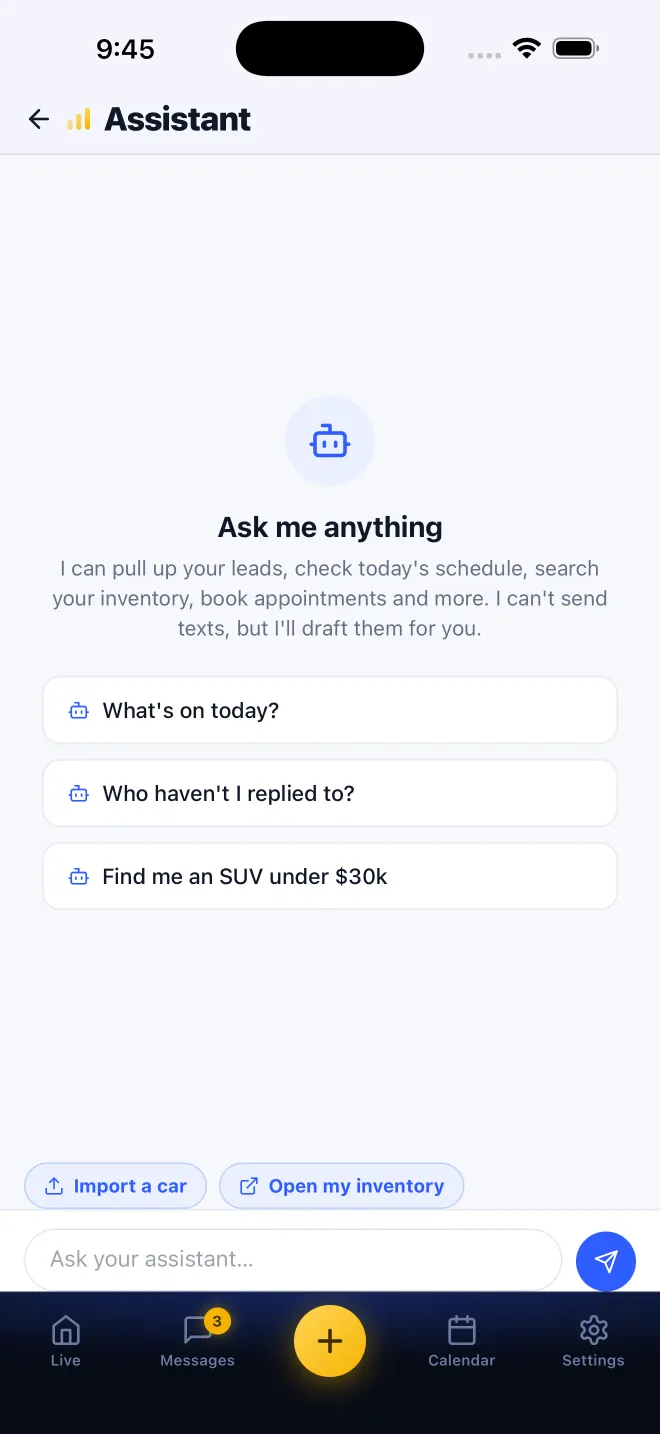
The Assistant (Pro)
On Pro you also get an Assistant you can ask questions. It is separate from the AI that texts customers.
- Open it: in the app, tap +, then Assistant. On a computer, click Assistant in the left menu.
- Ask things like: "What's on today?" or "Who haven't I replied to?"
- It never texts a customer by itself. It shows a draft marked Review before sending. You decide.
Common questions
What does the Relay Solo AI do?
It answers your leads in your name, answers questions, and can book appointments. It never quotes a price, payment or trade value; it guides those questions toward an appointment, and hands the chat to you when the customer asks for a person.
Can I turn the AI off?
Yes. In the app, turn off AI Cover in Settings. To stop it for one customer, open the conversation and tap Pause.
How do I stop the automatic first text?
In the app go to Settings, Auto-Reply to New Leads, pick No Auto-Reply, and tap Save Preferences. On a computer use Settings, then Auto-Reply, then No Auto-Reply.
Can I see what the AI sent?
Yes. Every AI message is in the conversation with a small AI label.
Is there a limit on AI replies?
On Starter the AI sends up to 3 messages per customer every 90 days. Pro has no limit.
Does the Assistant text customers by itself?
No. The Pro Assistant writes a draft. You choose to send it.