Import your contacts
Bring in your past customers from Excel on a computer, or from the contacts on your phone. Nobody gets a text.
In short: Bring your past customers into Relay Solo from an Excel or CSV file on a computer, or from the contacts on your phone. Nobody gets a text when you import.
Who this is for: Relay Solo customers who want their past customers in Relay.
Two ways to import
- From Excel or a CSV file: use a computer. The phone app cannot open spreadsheets.
- From your phone contacts: use the app.
Each person becomes a lead. Nobody is texted or called.
Import your contacts from Excel
- On a computer, sign in at app.userelay.ca. Need help? See Get the app and log in.
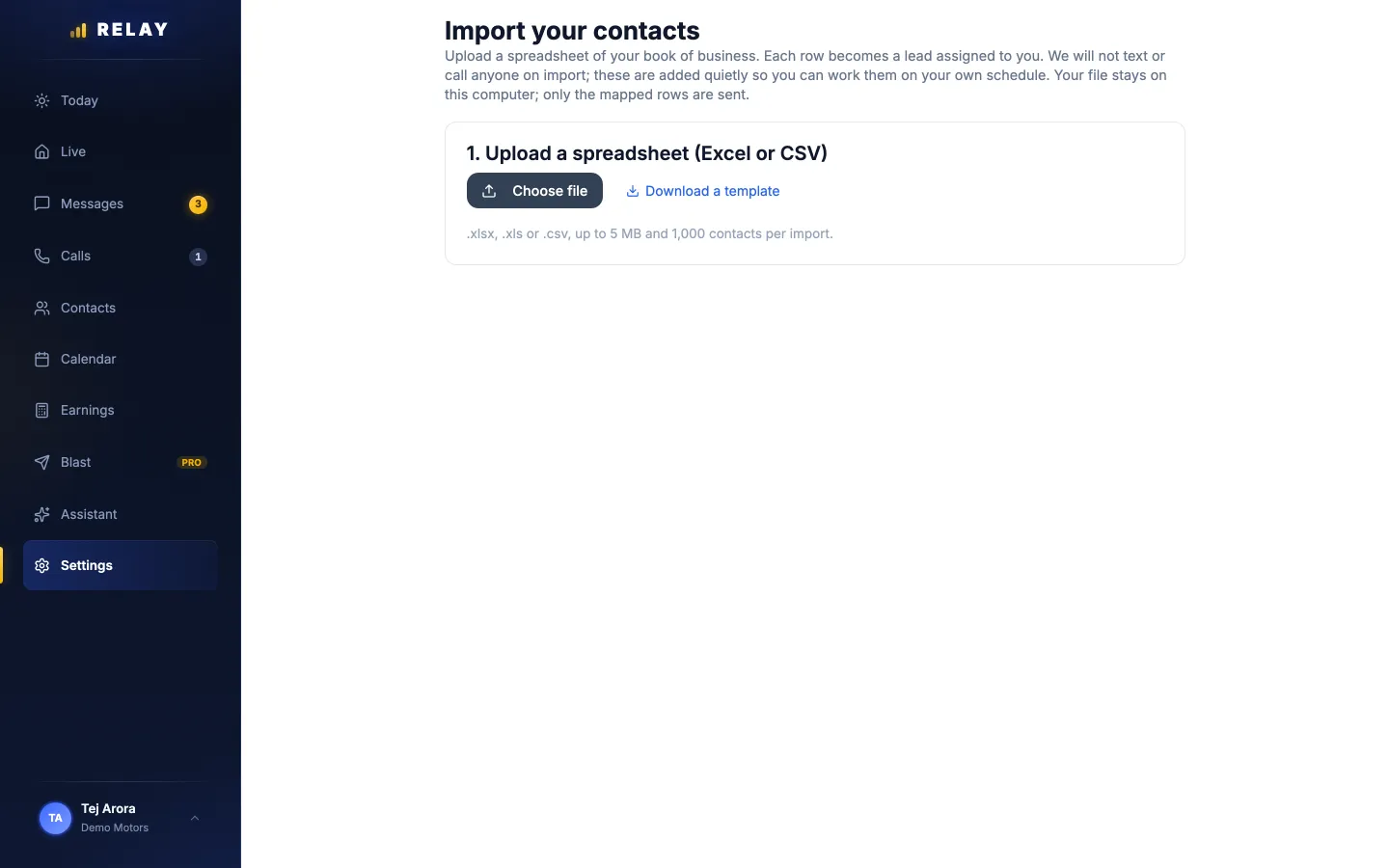
Settings, then Import Contacts. - Click Choose file. Pick your .xlsx, .xls, or .csv file.
- More than one sheet in the file? Pick the right one in the Sheet menu.
- Under Map your columns, Relay matches your columns for you. Check that Phone (or Email) points at the right column. Fix any menu that is wrong.
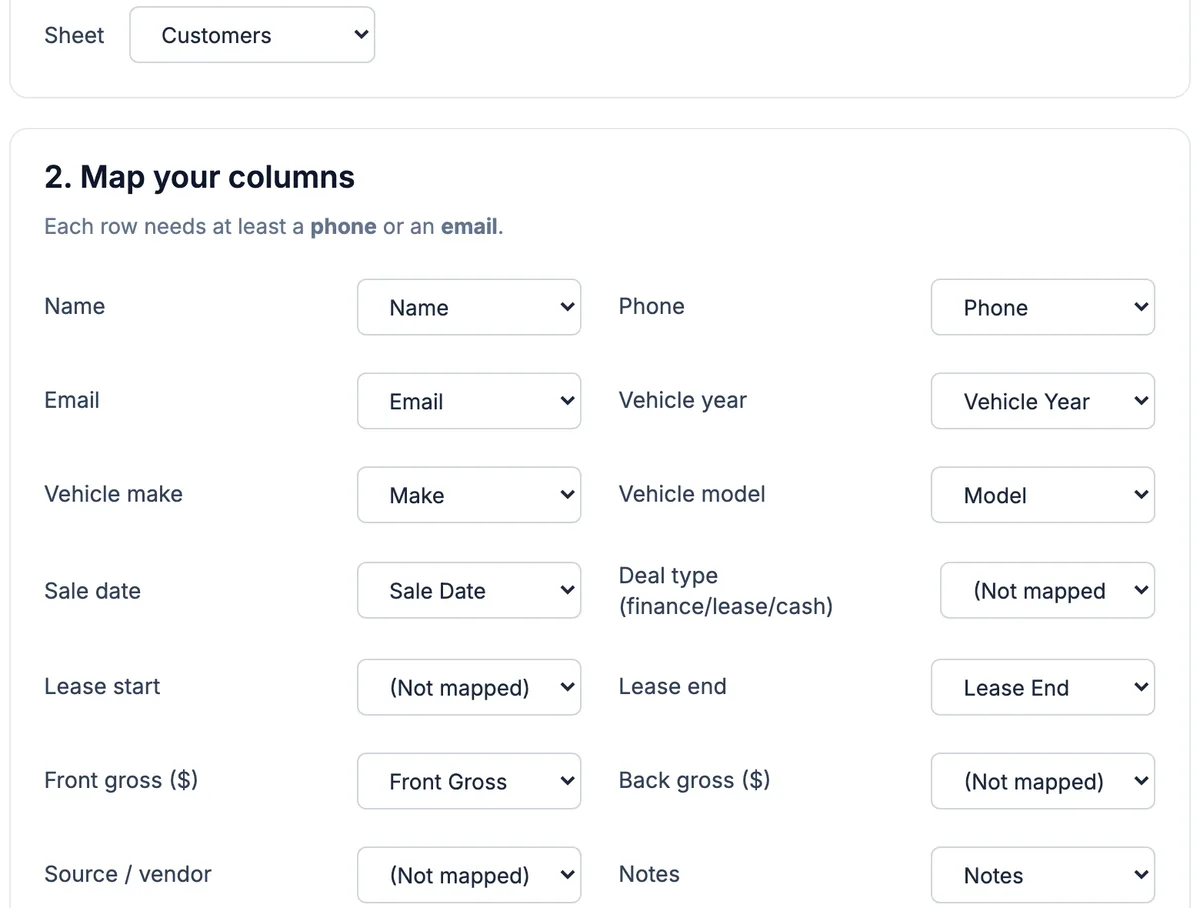
Each menu shows which column of your file Relay will use. (Not mapped) means it is skipped. - Scroll to Preview & import. It shows your first 5 rows and how many rows will come in.
- Click Import 25 contacts (the number matches your file). You see Import complete.
No file yet?Click Download a template. It has the columns Relay expects: Name, Phone, Email, Vehicle Year, Make, Model, Sale Date, Notes.
LimitsUp to 5 MB and 1,000 contacts at a time. Bigger list? Split it into files of 1,000 rows or fewer.
If something looks wrong
- Phones look like 6.04E+09. Excel cut them short. Format the phone column as Text, fix the numbers, save, and upload again.
- Dates are backwards. Relay reads 03/04/2026 as March 4. If you meant 3 April, tick My dates are day/month.
- Some dates could not be read. Those are left blank. The rest of the row still imports.
- Apple Numbers file. In Numbers, choose File, Export To, Excel. Upload that.
- Password-protected file. Save a copy without the password.
- Some rows could not be imported. Import just those rows again.
- Phone could not be read. The person is added without a phone. Add it on their contact.
- Numbers that cannot get texts. US numbers cannot get texts from a Canadian Relay number yet. You can still call them.
Import from your phone contacts
- Open the app and tap Settings.
- Tap Import Contacts.
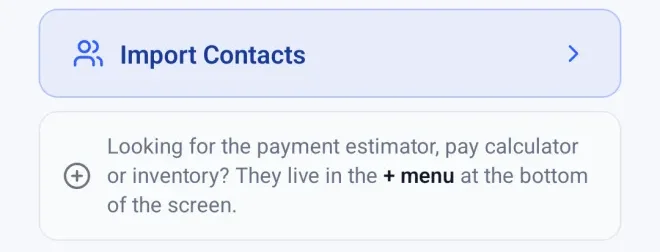
In the app: Settings, then Import Contacts. - When your phone asks, allow Relay to see your contacts.
- Tap the people you want, or tap Select all.
- Tap Import, then confirm. Tap Done.
Said no to contacts by mistake?Tap Open Settings on the import screen. Turn on Contacts for Relay, then come back.
Have a spreadsheet?On the import screen, tap Send to my computer. Send yourself the link, then open it on a computer.
After you import
- No texts go out. No auto-reply, no AI message.
- The AI is paused on imported leads. Open a lead and tap Resume if you want the AI to help with that person.
- Rows with a sale date are saved as past buyers. You can reach them later with a Blast (Pro).
Texting rulesOnly text people who know you, like past customers. Relay handles STOP replies for you. When in doubt, call first.
Common questions
Can I import an Excel file into Relay Solo?
Yes, on a computer. Go to app.userelay.ca, then Settings, then Import Contacts. Relay takes .xlsx, .xls, and .csv files up to 5 MB and 1,000 contacts at a time.
Can I import a spreadsheet from my phone?
No. The phone app cannot open spreadsheet files. Use a computer. In the app you can import the contacts saved on your phone instead.
Does Relay text people when I import them?
No. Nobody gets a text, auto-reply, or AI message. The AI starts paused on each imported lead.
Can I import contacts from my iPhone?
Yes. In the app go to Settings, then Import Contacts. Allow access, pick the people, and tap Import.
What if I import the same file twice?
It is safe. People already in Relay from an earlier import, or with an open lead, are not added again.