Get the app and log in
Get the app on your phone. Then use the same login on any computer at app.userelay.ca.
In short: Download the Relay app for iPhone or Android, sign in, and use the same account on a computer at app.userelay.ca. Also: sign in with a text code and reset your password.
Who this is for: Anyone with a Relay Solo account who needs the app, or wants to use Relay on a computer.
Get the app
- On iPhone, open the App Store. On Android, open Google Play.
- Search Relay by RazzyTech and install it.
- Open it and sign in with the email and password you signed up with.
- When it asks to send notifications, tap Allow. This is how you hear about new leads.
Keep it signed inCalls to your Relay number ring in the app. If you sign out or delete the app, you will miss calls.
Log in on a computer
The app and the website are one account. Same email, same password, same leads.
- On your computer, go to app.userelay.ca.
- Type your Email address and Password.
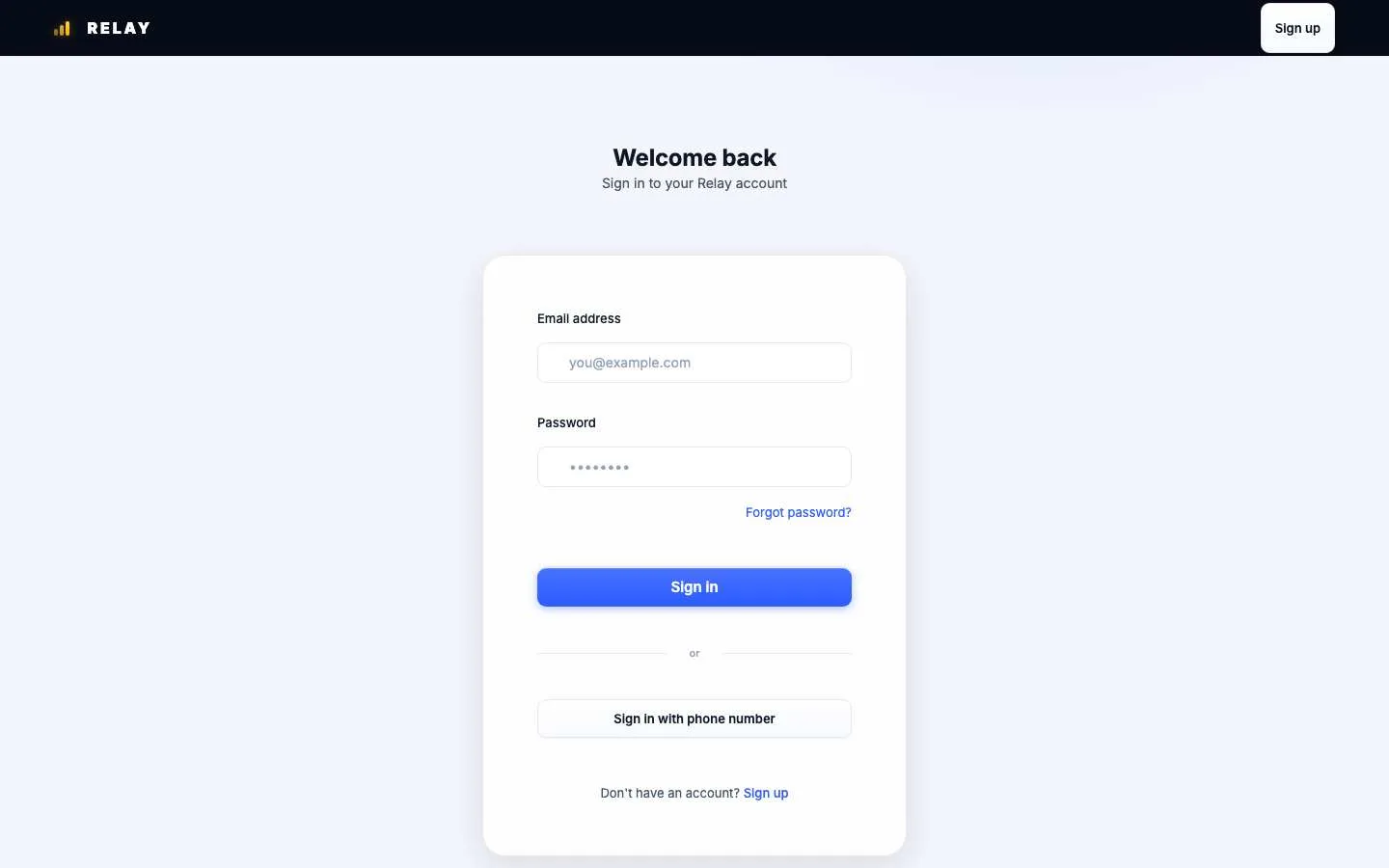
app.userelay.ca/login on a computer. - Click Sign in.
Log in with a text code
- On the sign in page, click Sign in with phone number.
- Type your cell number. Click Send code.
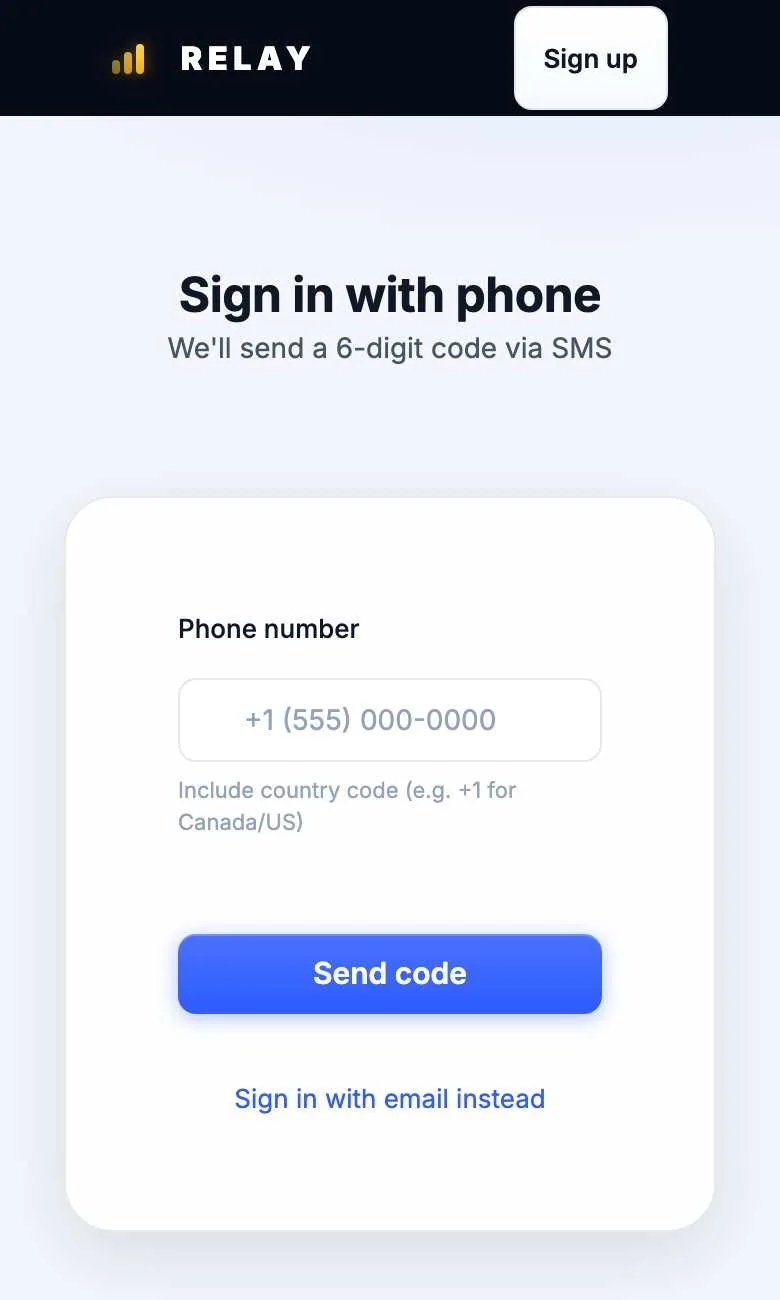
Sign in with a text code. - Type the 6-digit code from the text. Click Verify.
No code?A code only goes to the phone number on your Relay login. If none comes after a minute, sign in with your email and password instead.
Forgot your password
- On the sign in page, click Forgot password?
- Type your email. Click Send reset link.
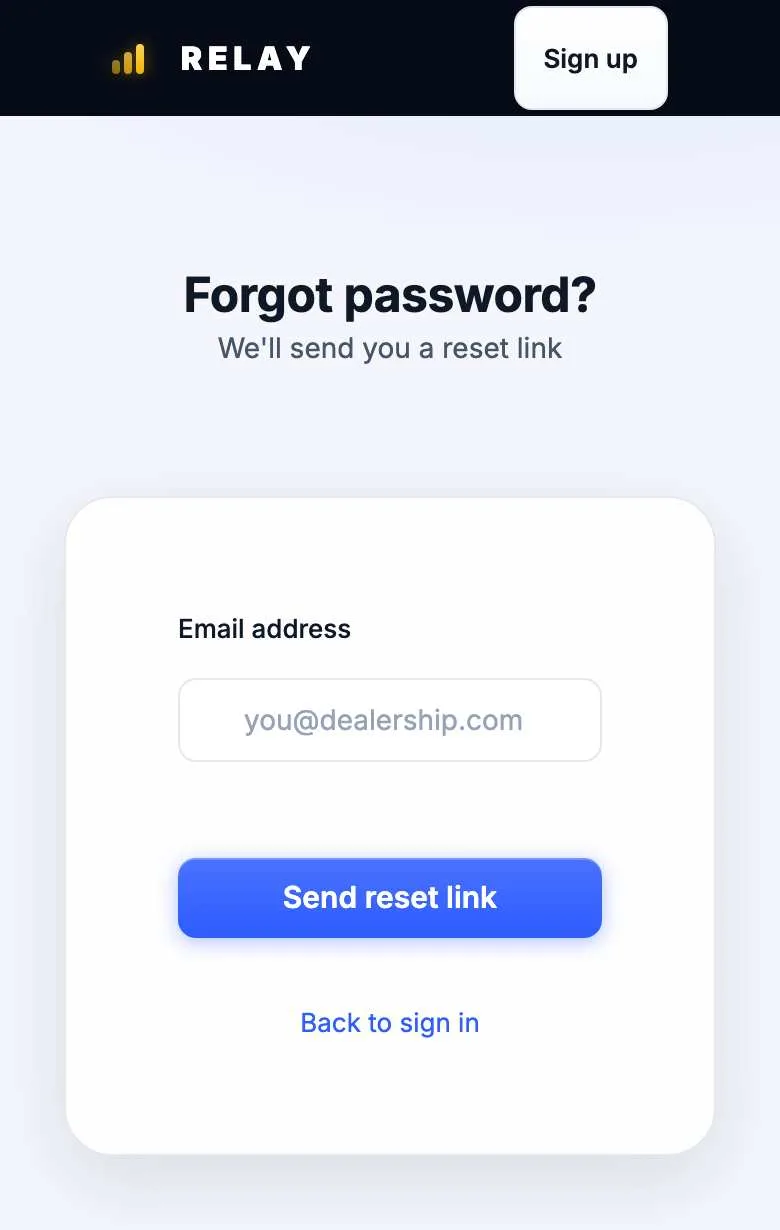
Forgot password sends a reset link to your email. - Open the email from Relay and click the link. Not there? Check your junk folder.
- Type a new password twice (8 characters or more). Click Update password.
- Sign in with the new password. Use it in the app too.
Link says expired?Each link works once. Ask for a new one.
In the app: type your email first, then tap Forgot password?. You get the same email.
What to do on a computer
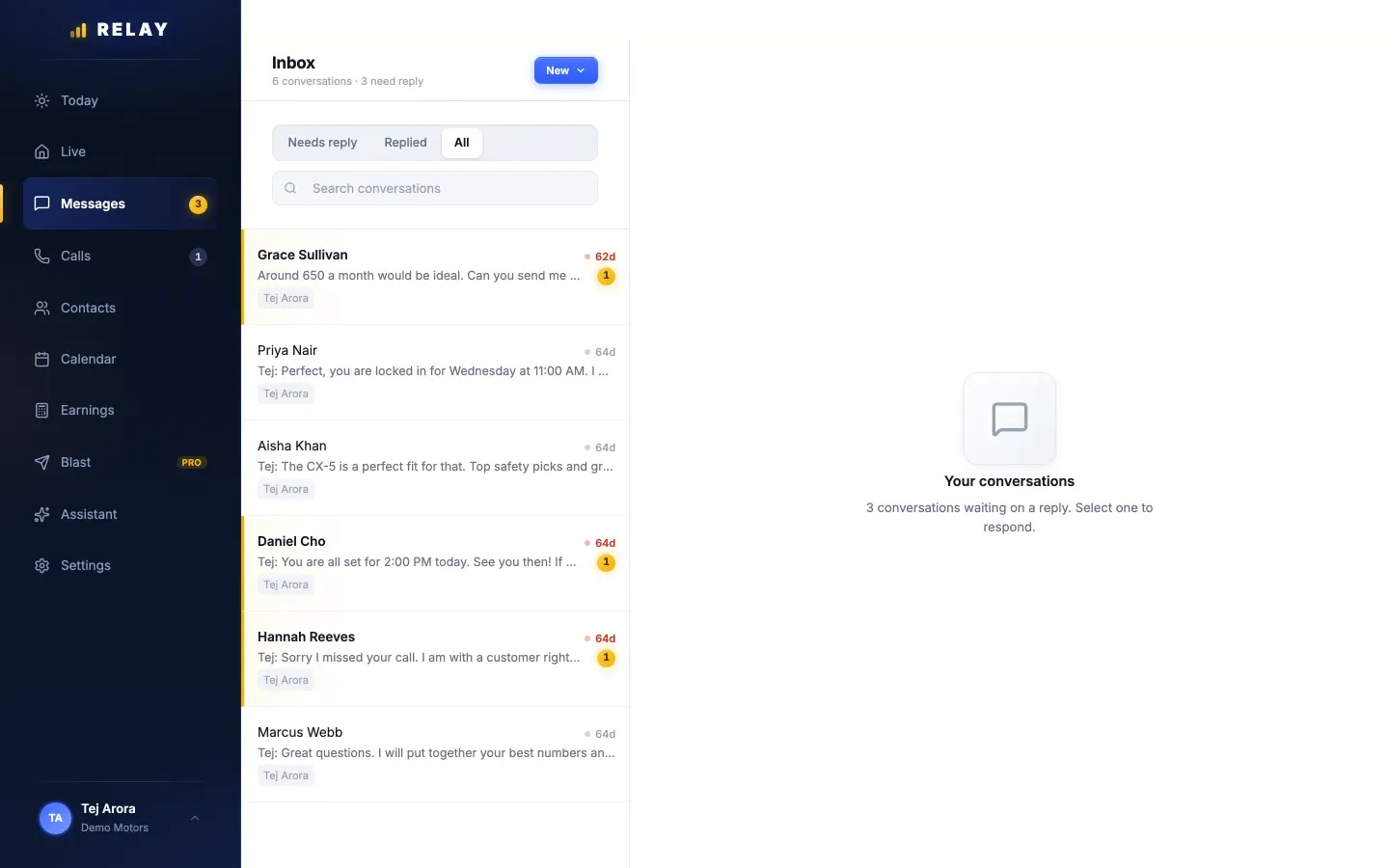
The menu on the left has every page:
- Today: who needs a reply and today's appointments.
- Messages: all your conversations.
- Calls and Contacts: call history and everyone in Relay.
- Calendar: appointments you or the AI booked.
- Earnings: your deals and commission.
- Blast and Assistant: Pro plan.
- Settings: lead email, AI, auto-reply, and more.
Use a computer for: importing a spreadsheet (see Import your contacts), settings, and long replies.
Use your phone for: calls, new lead alerts, and adding a lead from a screenshot.
On a phone browserMost pages ask you to use the app instead. That is normal.
Common questions
Where do I get the Relay Solo app?
Search "Relay by RazzyTech" in the App Store on iPhone or Google Play on Android. Sign in with the email and password you signed up with.
Can I use Relay Solo on a computer?
Yes. Go to app.userelay.ca and sign in with the same email and password as the app. Your leads and messages are the same on both.
Do I need a separate account for the computer?
No. The app and the website use one account.
I forgot my Relay password. What do I do?
On app.userelay.ca click Forgot password?, type your email, and click Send reset link. Open the email and pick a new password of at least 8 characters.
My sign in code never came. Why?
A text code only works for the phone number on your Relay login. Sign in with your email and password instead, or text us at (778) 764-1975.